
Has been a long time since I upgraded my OpenBSD boxes. But there we are! Running 7.6 smoothly!

Remy's Adventures in Cyberspace
config, code, consume
Has been a long time since I upgraded my OpenBSD boxes. But there we are! Running 7.6 smoothly!

Up! up! up!
Did have one strange issue tho I had to reboot a bit more than usual to have nginx find php-fpm.sock again. But it’s working! =]

Another version bump…

Gotta stay up to date…

I recently lost a box due to unpaid invoices; all mail from my hosting partner ended up in my junk-folder, never saw them. So I had to get a new box and do a fresh install. Let’s write up the lessons learned while doing this.
Thanks to my previous posts everything was back in no time, but since my first steps in OpenBSD were a bit bumpy I decided to do a new write-up, first let’s install OpenBSD. The only problem I ran into was the fact that for some reason DHCP was not working so I had to manually configure the network.
After that I followed my previous hardening procedures. Learned about setting the clock on OpenBSD to fix a problem with pkg_add. To install some hard-needed utilities:
$ doas pkg_add nano git rsyncNext up: installing and configuring the OEMP stack. The acme-client seems to be part of base these days, nice!
$ doas pkg_add nginx mariadb-server php-mysqliI have a nice git-repo with all kinds of useful stuff to configure nginx called etc-nginx. Not public (yet). I clone it into ~/git/etc-nginx.
Preparing the /etc/nginx directory for my default way of working:
$ cd /etc/nginx
$ doas ln -sf ~/git/etc-nginx/common
$ doas ln -sf ~/git/etc-nginx/nginx-openbsd.conf nginx.conf
$ doas mkdir cert
$ doas openssl dhparam -out /etc/nginx/cert/dhparam.pem 4096
$ doas mkdir sites-enabled
$ cd /etc/nginx/sites-enabled
$ doas ln -sf ~/git/etc-nginx/sites-available/acme-challenge.conf
$ doas nginx -t
$ doas rcctl start nginx
Configure acme-client to automate the renewal of the Let’s Encrypt certificates.
$ doas cp /etc/examples/acme-client.conf /etc/acme-client.conf
$ doas nano /etc/acme-client.conf
Change the domain example.com to your domain and add alternative names, change the location of the files to /etc/nginx/cert/.
domain example.com {
  alternative names { secure.example.com }
  domain key "/etc/nginx/cert/key"
  domain full chain certificate "/etc/nginx/cert/chain.crt"
  sign with letsencrypt
}
Let’s run the client: (double v for extra verbose)
$ doas acme-client -vv example.comAdd the dynamic vhosts configuration for single cert:
$ doas ln -sf ~/git/etc-nginx/sites-available/dynamic-vhosts-single-cert.conf
$ doas nginx -t
$ doas rcctl reload nginx
Browsing to any of the domains pointing to this box should now work. Now that we have nginx running https we can add the certificate renewal to crontab:
$ doas crontab -e

30 2 * * * acme-client example.com && rcctl reload nginxThe packages are already installed so we only need to configure them.
$ doas /usr/local/bin/mysql_install_db
$ doas rcctl start mysqld
$ doas /usr/local/bin/mysql_secure_installation
$ doas ln -sf /etc/php-8.0.sample/mysqli.ini /etc/php-8.0/
Most times I just install a couple of php-modules because I will eventually end up using them anyway. Most notably php-curl. And as it turns out there is something you’ll need to do to make it work that caught me on one of my servers…
$ doas cp /etc/resolv.conf /var/www/etc/resolv.confMake sure everything is enabled and starts at reboot:
$ doas rcctl enable httpd
$ doas rcctl enable php80_fpm
$ doas rcctl enable mysqld
$ doas rebootMost simple way to verify the whole stack is by installing phpmyadmin into: /var/www/html/phpmyadmin
$ cd /var/www/html
$ doas curl -o file.tar.gz https://files.phpmyadmin.net/phpMyAdmin/5.1.0/phpMyAdmin-5.1.0-english.tar.gz
$ doas tar -xzf file.tar.gz
$ doas ln -sf phpMyAdmin-5.1.0-english.tar.gz phpmyadmin
$ cd phpmyadmin
$ doas mkdir tmp
$ doas chmod 777 tmp
$ doas mv config.sample.inc.php config.inc.php
$ doas nano config.inc.php
Add a 32 char long random string for Blowfish and enter 127.0.0.1 for the first server instead of localhost. Follow any upcoming errors in phpmyadmin…

After a couple of syspatch and sysupgrades I am now running OpenBSD 6.8! Let’s see what is all new here…
When I first installed MongoDB on my OpenBSD box I didn’t care about authentication, it was behind the firewall, purely for testing purposes. I first wanted to have some fun with it. But now I became curious and wanted to things right, so I enabled authentication.
In order to do so we first need to create an admin user:
$ mongo
> use admin
> db.createUser({ user: "admin", pwd: passwordPrompt(), roles: [ { role: "userAdminAnyDatabase", db: "admin" }, "readWriteAnyDatabase" ] });
> exit
After that enable authentication in /etc/mongodb.conf by adding:
security:
  authorization: enabled
Restart mongod
$ doas rcctl restart mongodAfter that you can connect to mongo with:
$ mongo --authenticationDatabase "admin" -u "admin" -pAnd now we can create additional users for our applications:
> use my_db
> db.createUser({ "user": "db_user", "pwd": passwordPrompt(), roles: [{ role: "readWrite", db: "my_db" }]})
And lastly we implement the credentials in our php-project:
<?php

$mongo = new MongoDB\Driver\Manager("mongodb://db_user:password@localhost:27017/my_db");
And we are set to go!
Okay, for a new project I want to try and move to MongoDB, I am really looking forward to a schema free database where I can simply just store my ‘documents’ and do with them what I want!
So let’s log into our server and get some stuff installed:
$ doas pkg_add mongodb
$ doas rcctl enable mongod
$ doas rcctl start mongod
$ mongo
MongoDB shell version: 3.2.22
connecting to: test
Welcome to the MongoDB shell.
For interactive help, type "help".
For more comprehensive documentation, see
	http://docs.mongodb.org/
Questions? Try the support group
	http://groups.google.com/group/mongodb-user
Server has startup warnings:
2020-03-20T23:01:00.737+0100 I CONTROL  [initandlisten]
2020-03-20T23:01:00.737+0100 I CONTROL  [initandlisten] ** NOTE: your operating system version does not support the method that MongoDB
2020-03-20T23:01:00.737+0100 I CONTROL  [initandlisten] **       uses to detect impending page faults.
2020-03-20T23:01:00.737+0100 I CONTROL  [initandlisten] **       This may result in slower performance for certain use cases
2020-03-20T23:01:00.737+0100 I CONTROL  [initandlisten]
2020-03-20T23:01:00.737+0100 I CONTROL  [initandlisten] ** WARNING: soft rlimits too low. Number of files is 128, should be at least 1000
2020-03-20T23:01:00.737+0100 I CONTROL  [initandlisten]
For what it’s worth Mongo is showing some startup warnings, I’m going to ignore these for now. Let’s first insert some data so we can test our db connection later when we are in PHP:
$ mongo testdb
> db.users.insert({ 'name': 'Remy Blom', 'email': 'r@aodw.nl' })
Thing is we have a working MongoDB, kinda cool, but I want to be able to talk to it from PHP (or do I? I might have to rethink that… PHP is waaaay old and stuff?)
First we have to prepare our OpenBSD to be able to run the manual installation. (I still think this should also be able to work in such a way that you could just use the pecl install method, but I kept running into the error mentioning AUTOCONF_VERSION was not set…)
In order to get phpize running I had to do:
$ doas pkg_add pear autoconf
$ cd /usr/local/bin
$ ln -s phpize-7.3 phpize
$ ln -s php-config-7.3 php-config
Furthermore I had to add to my ./profile:
export AUTOCONF_VERSION=2.69Then I had to re-login for the profile to take effect and then I could run:
$ git clone https://github.com/mongodb/mongo-php-driver.git
$ cd mongo-php-driver
$ git submodule update --init
$ phpize
$ ./configure
$ make all
$ sudo make install
Restart php-fpm and ready to go:
$ doas rcctl restart php73_fpmLet’s write a little program that returns that user we inserted in the beginning:
<?php

    $m = new MongoDB\Driver\Manager("mongodb://localhost:27017");
    $query = new MongoDB\Driver\Query([]);

    $results = $m->executeQuery("testdb.users", $query);
    echo $results;

    foreach ($results as $result) {
        print_r($result);
    }
Running this code will print:
stdClass Object
(
    [_id] => MongoDB\BSON\ObjectId Object
        (
            [oid] => 5e79c3a3c7f38ba9c7943ffd
        )

    [name] => Remy Blom
    [email] => r@aodw.nl
)
Please note that in the $results object you don’t see any of your results, that had me looking puzzled and scratching my head for a while….
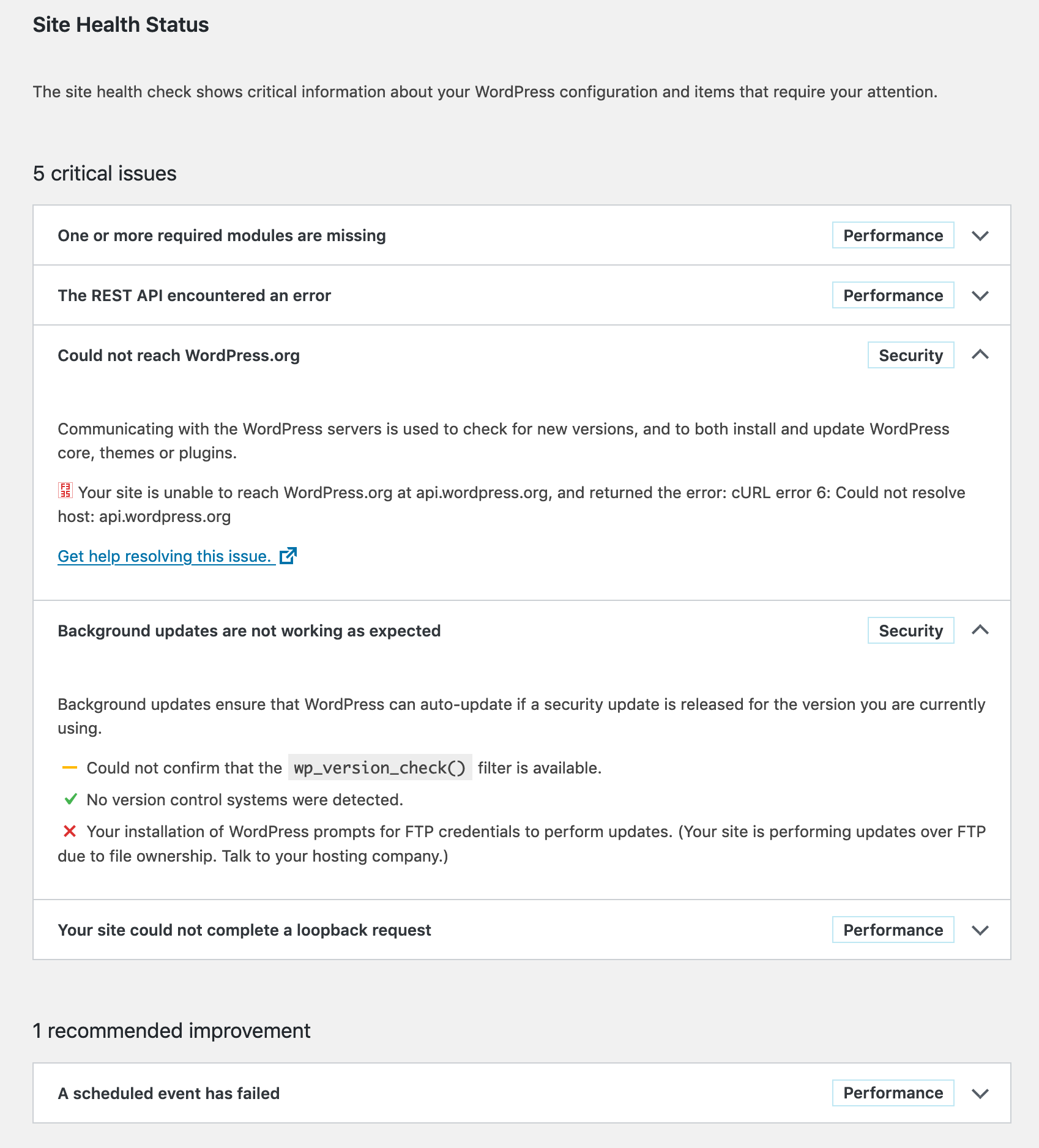
I recenlty moved my WordPress installation to another server; the one it was on was acting slow most of the time, which annoyed me in some cases. But now on the new server I get this bitching screen again when I run Tools > Site Health.
I want a healthy site!
The only required module seams to be gd, so I install it, and the optional zip. I don’t like imagick so I skip that.
$ doas pkg_add php-zip php-gd wget
$ doas mv /etc/php-7.3.sample/* /etc/php-7.3/
$ doas rcctl restart php73_fpmThese three problems all have the same error message:
Error: [] cURL error 6: Could not resolve host: [some domain]
Looks like someone has trouble with dns resolving… Now the weirdest thing is that on my previous server, this was all working just superfine, but on the current server I just don’t get this error out of the way. Google (or any other search-engine) is not of any help. People fixing things with putting stuff in /etc/hosts, or putting the Google DNS servers in /etc/resolv.conf are not fixing problems, just mere circumventing them.
I have done quite some research in this issue and as it turns out any php run thru my webserver is not able to resolve any hosts, functions like gethostbyname or dns_get_record return nothing on this new server (and work like a charm on my old one…. GRRRR!!!)
Also interesting to know is that the functions above work perfectly fine when I run the php-scripts from the command-line:
$ php -f test.php
Array
(
    [0] => Array
        (
            [host] => akira.hku.nl
            [class] => IN
            [ttl] => 100
            [type] => A
            [ip] => 192.87.219.165
        )

)This one is easy to solve, just make sure that the files of WordPress are of the right owner:
$ cd /var/www/vhosts/remyblom.nl/blog
$ doas chown -R www:www .The problem with cURL seems pretty consistent, although my two servers and their installations are so very equal, it’s super-scary. But I will continue the search, other pointers might be:
Man I have been looking into this issue so many times and now, May 2021, installing a new box with OpenBSD, I finally managed to enter the right search-query and FIND THE ANSWER!
$ cd /var/www/
$ doas mkdir etc
$ cd etc
$ doas cp /etc/resolv.conf .I really like the idea of httpd being secure and lightweight and all, but I also need flexibily, especially from my webserver. Couple of things I was missing in httpd are:
index "index.html index.php index.htm"I read man pages, asked questions online, used google (as it turns out openbsd httpd is a really shitty search-query when you don’t just want to install wordpress….). I even looked at the code, but my C knowledge is rusty, I know where to make the needed changes in the code, but don’t know quite how to do it. And while I love to learn, that will take some time and quite frankly I don’t have that right now, so…. Let’s go back to nginx!
$ doas pkg_add nginx
$ doas mkdir /etc/nginx/sites-available
$ doas mkdir /etc/nginx/sites-enabled
For now I just wanted my sites back online; I tweaked /etc/nginx/nginx.conf so it uses sites-available and sites-enabled directories:
# /etc/nginx/nginx.conf:
worker_processes  1;

worker_rlimit_nofile 1024;
events {
    worker_connections  800;
}

http {
    include       mime.types;
    default_type  application/octet-stream;
    index         index.html index.php index.htm;

    keepalive_timeout  65;
    server_tokens off;
    disable_symlinks off;

    include sites-enabled/*;
}
Simple and effective main nginx.conf that came with the install with all outcommented lines deleted. After that I created /etc/nginx/php-fpm.conf that can be included in every site-config that needs it:
# /etc/nginx/php-fpm.conf
# pass the PHP scripts to FastCGI server listening on unix socket
#
location ~ \.php$ {
   try_files      $uri $uri/ =404;
   fastcgi_pass   unix:run/php-fpm.sock;
   fastcgi_index  index.php;
   fastcgi_param  SCRIPT_FILENAME $document_root$fastcgi_script_name;
   include        fastcgi_params;
}
So now for a simple site that allows for dynamic vhosting using only http:
# /etc/nginx/sites-available/dynamic.vhosts
server {
	listen 80 default_server;
	listen [::]:80 default_server;

	index index.php index.html index.htm index.nginx-debian.html;

	set $basepath "/vhosts";
	set $domain $host;

	if ($domain ~ "^(.[^.]*)\.(.[^.]*)$") {
		set $rootpath "$1.$2/www/";
		set $servername $domain;
	}

	if ($domain ~ "^(.[^.]*)\.(.[^.]*)\.(.[^.]*)$") {
	        set $rootpath "$2.$3/$1/";
                set $servername $domain;
	}

	server_name $servername;
	root $basepath/$rootpath;

	location / {
		# First attempt to serve request as file, then
		# as directory, then fall back to displaying a 404.
		try_files $uri $uri/ =404;
	}

	include php-fpm.conf;
}
Enable this site:
$ doas ln -sf /etc/nginx/sites-available/dynamic.vhosts /etc/nginx/sites-enabled/dynamic.vhostsWith all the configfiles in place it is time to switch:
$ doas rcctl stop httpd
$ doas rcctl disable httpd
$ doas rcctl enable nginx
$ doas rcctl start nginx
Of course this is not yet final, I’ll have to setup nginx to respond to the acme-challenges that I have in my cron, I still have to setup https too, but at least my sites are back online no matter whether they have an index.html or an index.php.