

Fresh install: OpenBSD 6.9

I recently lost a box due to unpaid invoices; all mail from my hosting partner ended up in my junk-folder, never saw them. So I had to get a new box and do a fresh install. Let’s write up the lessons learned while doing this.

Thanks to my previous posts everything was back in no time, but since my first steps in OpenBSD were a bit bumpy I decided to do a new write-up, first let’s install OpenBSD. The only problem I ran into was the fact that for some reason DHCP was not working so I had to manually configure the network.

After that I followed my previous hardening procedures. Learned about setting the clock on OpenBSD to fix a problem with pkg_add. To install some hard-needed utilities:

$ doas pkg_add nano git rsync

Next up: installing and configuring the OEMP stack. The acme-client seems to be part of base these days, nice!

$ doas pkg_add nginx mariadb-server php-mysqli

NGINX & Let’s Encrypt certificates

I have a nice git-repo with all kinds of useful stuff to configure nginx called etc-nginx. Not public (yet). I clone it into ~/git/etc-nginx.

Preparing the /etc/nginx directory for my default way of working:

$ cd /etc/nginx
$ doas ln -sf ~/git/etc-nginx/common
$ doas ln -sf ~/git/etc-nginx/nginx-openbsd.conf nginx.conf
$ doas mkdir cert
$ doas openssl dhparam -out /etc/nginx/cert/dhparam.pem 4096
$ doas mkdir sites-enabled
$ cd /etc/nginx/sites-enabled
$ doas ln -sf ~/git/etc-nginx/sites-available/acme-challenge.conf
$ doas nginx -t
$ doas rcctl start nginx

Configure acme-client to automate the renewal of the Let’s Encrypt certificates.

$ doas cp /etc/examples/acme-client.conf /etc/acme-client.conf
$ doas nano /etc/acme-client.conf

Change the domain example.com to your domain and add alternative names, change the location of the files to /etc/nginx/cert/.

domain example.com {
  alternative names { secure.example.com }
  domain key "/etc/nginx/cert/key"
  domain full chain certificate "/etc/nginx/cert/chain.crt"
  sign with letsencrypt
}

Let’s run the client: (double v for extra verbose)

$ doas acme-client -vv example.com

Add the dynamic vhosts configuration for single cert:

$ doas ln -sf ~/git/etc-nginx/sites-available/dynamic-vhosts-single-cert.conf
$ doas nginx -t
$ doas rcctl reload nginx

Browsing to any of the domains pointing to this box should now work. Now that we have nginx running https we can add the certificate renewal to crontab:

$ doas crontab -e

30	2	*	*	*	acme-client example.com && rcctl reload nginx

PHP & MariaDB

The packages are already installed so we only need to configure them.

$ doas /usr/local/bin/mysql_install_db
$ doas rcctl start mysqld
$ doas /usr/local/bin/mysql_secure_installation
$ doas ln -sf /etc/php-8.0.sample/mysqli.ini /etc/php-8.0/

Most times I just install a couple of php-modules because I will eventually end up using them anyway. Most notably php-curl. And as it turns out there is something you’ll need to do to make it work that caught me on one of my servers…

$ doas cp /etc/resolv.conf /var/www/etc/resolv.conf

Make sure everything is enabled and starts at reboot:

$ doas rcctl enable httpd
$ doas rcctl enable php80_fpm
$ doas rcctl enable mysqld
$ doas reboot

Verify

Most simple way to verify the whole stack is by installing phpmyadmin into: /var/www/html/phpmyadmin

$ cd /var/www/html
$ doas curl -o file.tar.gz https://files.phpmyadmin.net/phpMyAdmin/5.1.0/phpMyAdmin-5.1.0-english.tar.gz
$ doas tar -xzf file.tar.gz
$ doas ln -sf phpMyAdmin-5.1.0-english.tar.gz phpmyadmin
$ cd phpmyadmin
$ doas mkdir tmp
$ doas chmod 777 tmp
$ doas mv config.sample.inc.php config.inc.php
$ doas nano config.inc.php 

Add a 32 char long random string for Blowfish and enter 127.0.0.1 for the first server instead of localhost. Follow any upcoming errors in phpmyadmin…
That’s it!

Enabling authentication on MongoDB

When I first installed MongoDB on my OpenBSD box I didn’t care about authentication, it was behind the firewall, purely for testing purposes. I first wanted to have some fun with it. But now I became curious and wanted to things right, so I enabled authentication.

In order to do so we first need to create an admin user:

$ mongo
> use admin
> db.createUser({ user: "admin", pwd: passwordPrompt(), roles: [ { role: "userAdminAnyDatabase", db: "admin" }, "readWriteAnyDatabase" ] });
> exit

After that enable authentication in /etc/mongodb.conf by adding:

security:
  authorization: enabled

Restart mongod

$ doas rcctl restart mongod

After that you can connect to mongo with:

$ mongo --authenticationDatabase "admin" -u "admin" -p

And now we can create additional users for our applications:

> use my_db
> db.createUser({ "user": "db_user", "pwd": passwordPrompt(), roles: [{ role: "readWrite", db: "my_db" }]})

And lastly we implement the credentials in our php-project:

<?php

$mongo = new MongoDB\Driver\Manager("mongodb://db_user:password@localhost:27017/my_db");

And we are set to go!

Stop WordPress with bitching about my install…

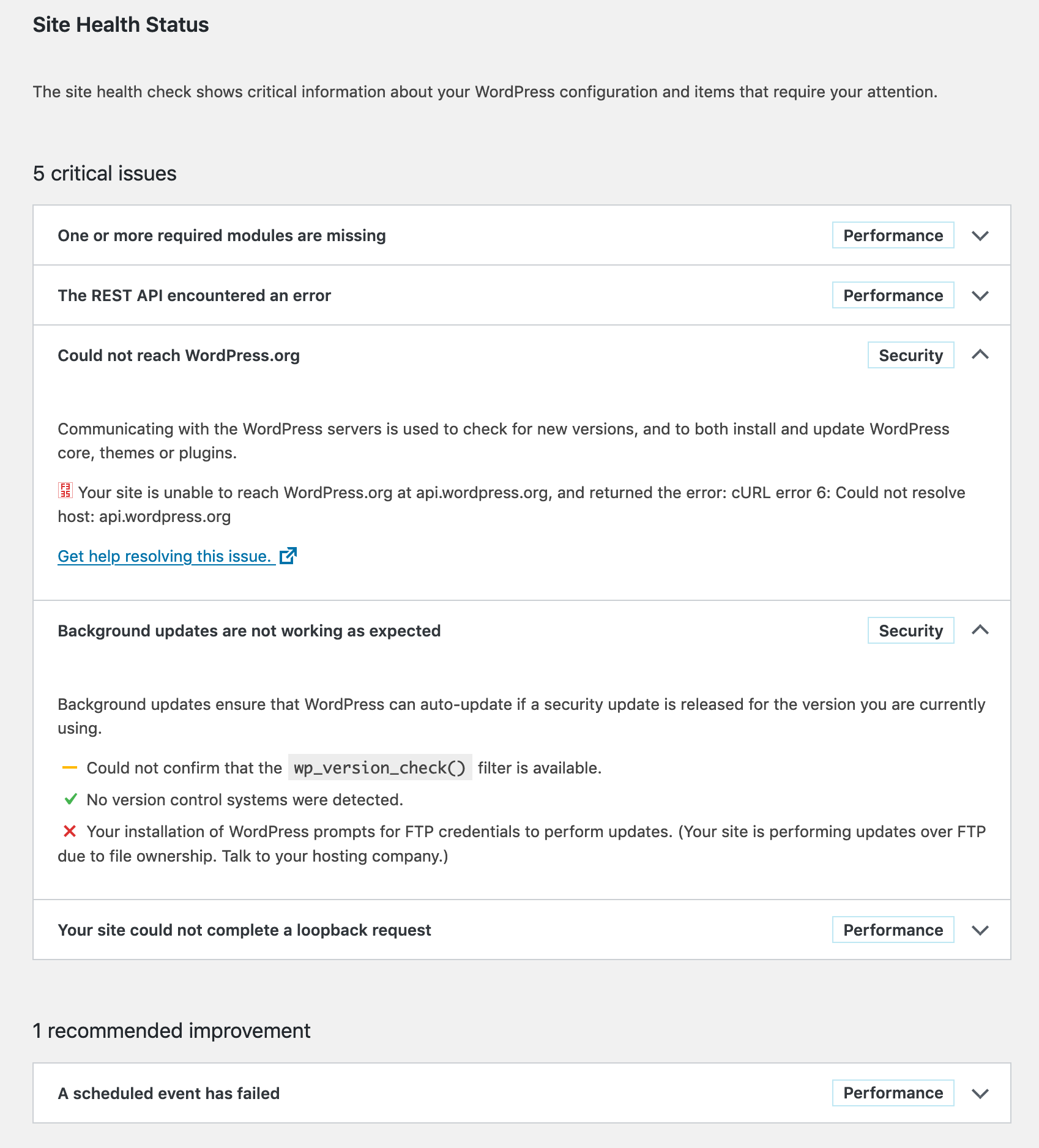
I recenlty moved my WordPress installation to another server; the one it was on was acting slow most of the time, which annoyed me in some cases. But now on the new server I get this bitching screen again when I run Tools > Site Health.

I want a healthy site!

One or more required modules are missing

The only required module seams to be gd, so I install it, and the optional zip. I don’t like imagick so I skip that.

$ doas pkg_add php-zip php-gd wget
$ doas mv /etc/php-7.3.sample/* /etc/php-7.3/
$ doas rcctl restart php73_fpm

The REST API encounted an error/Could not reach WordPress.org/Your site could not complete a loopback request

These three problems all have the same error message:

Error: [] cURL error 6: Could not resolve host: [some domain]

Looks like someone has trouble with dns resolving… Now the weirdest thing is that on my previous server, this was all working just superfine, but on the current server I just don’t get this error out of the way. Google (or any other search-engine) is not of any help. People fixing things with putting stuff in /etc/hosts, or putting the Google DNS servers in /etc/resolv.conf are not fixing problems, just mere circumventing them.

I have done quite some research in this issue and as it turns out any php run thru my webserver is not able to resolve any hosts, functions like gethostbyname or dns_get_record return nothing on this new server (and work like a charm on my old one…. GRRRR!!!)

Also interesting to know is that the functions above work perfectly fine when I run the php-scripts from the command-line:

$ php -f test.php
Array
(
    [0] => Array
        (
            [host] => akira.hku.nl
            [class] => IN
            [ttl] => 100
            [type] => A
            [ip] => 192.87.219.165
        )

)

Background updates are not working as expected

This one is easy to solve, just make sure that the files of WordPress are of the right owner:

$ cd /var/www/vhosts/remyblom.nl/blog
$ doas chown -R www:www .

Temporary Conclusion

The problem with cURL seems pretty consistent, although my two servers and their installations are so very equal, it’s super-scary. But I will continue the search, other pointers might be:

  • Firewall settings?
  • completely reinstall, php-fpm, php-curl, openBSD?

FINALLLLLY!!!! YES!!!!!

Man I have been looking into this issue so many times and now, May 2021, installing a new box with OpenBSD, I finally managed to enter the right search-query and FIND THE ANSWER!

$ cd /var/www/
$ doas mkdir etc
$ cd etc
$ doas cp /etc/resolv.conf .

Dynamic vhosts with https on nginx

In earlier articles I described how to setup vhosts with https in OpenBSD’s httpd, but in the end I got stuck because httpd did not have the flexibility I need in my webserver, so the switch back to nginx was eminent. Now let’s get that dynamic vhosting running with fully automated certificate renewal from Let’s Encypt!

First we setup a server at port 80 that serves the acme-challenge and sends everything else to https:

server {
	listen 80 default_server;
	listen [::]:80 default_server;
	server_name _;
	
	# the acme-challenge
	location /.well-known/acme-challenge {
		rewrite ^/.well-known/acme-challenge/(.*) /$1 break;
		root /acme;
	}

	# redirect everybody else to https
	location / {
		return 301 https://$host$request_uri;

	}
}

Since OpenBSD’s nginx port does not allow the use of variables in the ssl_cerificate and ssl_certificate_key directives. I configured acme-client with only one certificate with a whole long list of alternative names. Kinda ugly, I know…

Activate this server and run:

$ doas acme-client -Fv example.com

When you have your certificate you can add it to the server configuration:

server {
	listen 443 ssl default_server;
	listen [::]:443 ssl default_server;
        server_name $host;
	set $basepath "/vhosts";
	ssl_certificate     /etc/ssl/example.com.fullchain.crt;
	ssl_certificate_key /etc/ssl/private/example.com.key;
   
	if ($host ~ "^(.[^.]*)\.(.[^.]*)$") {
		set $rootpath "$1.$2/www/";
	}
	if ($host ~ "^(.[^.]*)\.(.[^.]*)\.(.[^.]*)$") {
	        set $rootpath "$2.$3/$1/";
	}

	root $basepath/$rootpath;

	location / {
		# First attempt to serve request as file, then
		# as directory, then fall back to displaying a 404.
		try_files $uri $uri/ =404;
	}

	include common.conf;
}
$ doas rcctl reload nginx

And enjoy your dynamic vhosts with https. The only thing you need to do everytime you’ll add a (sub)domain is add it to /etc/acme-client.conf and renew your certificate.

OpenBSD 6.6: switching back from httpd to nginx

I really like the idea of httpd being secure and lightweight and all, but I also need flexibily, especially from my webserver. Couple of things I was missing in httpd are:

  • configuring multiple files as index: index "index.html index.php index.htm"
  • block access to certain locations based on IP
  • using custom error pages
  • dynamic vhosts (although I still have to figure out how to do those with https)

I read man pages, asked questions online, used google (as it turns out openbsd httpd is a really shitty search-query when you don’t just want to install wordpress….). I even looked at the code, but my C knowledge is rusty, I know where to make the needed changes in the code, but don’t know quite how to do it. And while I love to learn, that will take some time and quite frankly I don’t have that right now, so…. Let’s go back to nginx!

OEMP!

$ doas pkg_add nginx
$ doas mkdir /etc/nginx/sites-available
$ doas mkdir /etc/nginx/sites-enabled

For now I just wanted my sites back online; I tweaked /etc/nginx/nginx.conf so it uses sites-available and sites-enabled directories:

# /etc/nginx/nginx.conf:
worker_processes  1;

worker_rlimit_nofile 1024;
events {
    worker_connections  800;
}

http {
    include       mime.types;
    default_type  application/octet-stream;
    index         index.html index.php index.htm;

    keepalive_timeout  65;
    server_tokens off;
    disable_symlinks off;

    include sites-enabled/*;
}

Simple and effective main nginx.conf that came with the install with all outcommented lines deleted. After that I created /etc/nginx/php-fpm.conf that can be included in every site-config that needs it:

# /etc/nginx/php-fpm.conf
# pass the PHP scripts to FastCGI server listening on unix socket
#
location ~ \.php$ {
   try_files      $uri $uri/ =404;
   fastcgi_pass   unix:run/php-fpm.sock;
   fastcgi_index  index.php;
   fastcgi_param  SCRIPT_FILENAME $document_root$fastcgi_script_name;
   include        fastcgi_params;
}

So now for a simple site that allows for dynamic vhosting using only http:

# /etc/nginx/sites-available/dynamic.vhosts
server {
	listen 80 default_server;
	listen [::]:80 default_server;

	index index.php index.html index.htm index.nginx-debian.html;

	set $basepath "/vhosts";
	set $domain $host;

	if ($domain ~ "^(.[^.]*)\.(.[^.]*)$") {
		set $rootpath "$1.$2/www/";
		set $servername $domain;
	}

	if ($domain ~ "^(.[^.]*)\.(.[^.]*)\.(.[^.]*)$") {
	        set $rootpath "$2.$3/$1/";
                set $servername $domain;
	}

	server_name $servername;
	root $basepath/$rootpath;

	location / {
		# First attempt to serve request as file, then
		# as directory, then fall back to displaying a 404.
		try_files $uri $uri/ =404;
	}

	include php-fpm.conf;
}

Enable this site:

$ doas ln -sf /etc/nginx/sites-available/dynamic.vhosts /etc/nginx/sites-enabled/dynamic.vhosts

With all the configfiles in place it is time to switch:

$ doas rcctl stop httpd
$ doas rcctl disable httpd
$ doas rcctl enable nginx
$ doas rcctl start nginx

Of course this is not yet final, I’ll have to setup nginx to respond to the acme-challenges that I have in my cron, I still have to setup https too, but at least my sites are back online no matter whether they have an index.html or an index.php.

Vhosts and https in OpenBSD’s httpd

In the previous post I got my OHMP stack running; OHMP is like LAMP or LEMP, but runs on OpenBSD, using it’s native httpd, topping it of with MariaDB and php.

I used phpmyadmin to verify everything is working fine, and it is, but for starters I don’t want my phpmyadmin to be accessible from all over the world, only from some trusted ip’s. With webservers like Apache and nginx it is very easy to do, but as it turns out, in httpd it is not. The most simple solution is to let PF do the ip restrictions for you. With the firewall rules I have in place only my http and https ports are globally accessible, all other ports are only accessible from a pool of trusted ip’s and ip-ranges. So when I change my /etc/httpd.conf to:

types { include "/usr/share/misc/mime.types" }

server "phpmyadmin" {
  listen on * port 8080
  directory { index "index.php" }
  root { "/htdocs/phpmyadmin" }
  location "/*.php*" {
    fastcgi socket "/run/php-fpm.sock"
  }
}

I now have phpmyadmin available on port 8080, only accessible from the trusted pool. Next we install acme-client:

$ doas pkg_add acme-client

Add another server in httpd.conf that serves the acme-challenge and redirects http to https:

server "default" {
  listen on * port 80 

  location "/.well-known/acme-challenge/*" {
    root "/acme"
    request strip 2
  }
  location "/*" {
    block return 301 "https://$HTTP_HOST$REQUEST_URI"
  }
}

Now we are ready to configure acme:

$ cp /etc/example/acme-client.conf /etc/acme-client.conf

Let’s add our domain to the file: for the purpose of this post I stick to the example.

domain example.com {
  alternative names { secure.example.com }
  domain key "/etc/ssl/private/example.com.key"
  domain full chain certificate "/etc/ssl/example.com.fullchain.pem"
  sign with letsencrypt
}

Now you have to take care of which version of OpenBSD you are running, because there are a few changes that got me confused. In order to do the first certificate request their must be an account key file and a private key for the server. Latter versions of acme-client will make those automatically, but the version that came with OpenBSD 6.5 needed specific flags to make them:

$ doas acme-client -vAD example.com

Now that we have our certificate we can adjust httpd.conf to add another server:

server "example.com" {
  alias "secure.example.com"
  listen on * tls port 443
  tls {
    certificate "/etc/ssl/example.com.fullchain.pem"
    key "/etc/ssl/private/example.com.key"
  }
  root "/vhosts/example.com"
  directory index "index.php" 
  
  location "/*.php*" {
    fastcgi socket "/run/php-fpm.sock"
  }
}

Test configuration and reload the configuration of your webserver:

$ doas httpd -n
$ doas rcctl reload httpd

Point your browser to http://example.com and it should redirect you to https! Next step is to automate the certificate renewal process:

$ doas crontab -e

To have acme-client check every night at 02:30:

30	2	*	*	*	acme-client example.com && rcctl reload httpd

Now you can repeat this process for all domains and subdomains you are hosting. I also tweaked my config to use https for phpmyadmin:

types { include "/usr/share/misc/mime.types" }

# DEFAULT: acme-challange and http->https redirects for all
server "default" {
  listen on * port 80 

  location "/.well-known/acme-challenge/*" {
    root "/acme"
    request strip 2
  }
  location "/*" {
    block return 301 "https://$HTTP_HOST$REQUEST_URI"
  }
}

# PHPMYADMIN: http->https redirect (8080->8443)
server "phpmyadmin-http" {
  listen on * port 8080
  block return 301 "https://example.com:8443$REQUEST_URI"
}
# PHPMYADMIN: serve over https
server "phpmyadmin-https" {
  listen on * tls port 8443
  tls {
    certificate "/etc/ssl/example.com.fullchain.pem"
    key "/etc/ssl/private/example.com.key"
  } 
  root "/htdocs/phpmyadmin"
  directory { index "index.php" }
 
  location "/*.php*" {
    fastcgi socket "/run/php-fpm.sock"
  }
}

And then it turned out that I was not satisfied with httpd and I needed to switch back to nginx!

Installing LEMP on OpenBSD 6.5

After installing and hardening my OpenBSD box it’s time to get some action done. Let’s get that LEMP stack, or rather the OHMP stack, because I am going to use OpenBSD’s httpd, MariaDB and PHP-FPM. And when I am ready I am going to install TLS certificates with Let’s Encrypt’s certbot.

I used this tutorial on h-i-r.net about setting up OHMP to get a bit more understanding about what was needed. Thanx Ax0n!

Let’s GO!

$ doas pkg_add php-mysqli mariadb-server

This will get all the needed packages. Configure MariaDB and enable php-mysqli:

$ doas /usr/local/bin/mysql_install_db
$ doas rcctl start mysqld
$ doas /usr/local/bin/mysql_secure_installation
$ doas ln -sf /etc/php-7.3.sample/mysqli.ini /etc/php-7.3/mysqli.ini

Create /etc/httpd.conf and put in:

types { include "/usr/share/misc/mime.types" }

server "default" {
  listen on * port 80
  root "/htdocs" 
  directory { index "index.php" }
  location "/*.php*" {
    fastcgi socket "/run/php-fpm.sock"
  }
}

And make sure everything is enabled and start at reboot:

$ doas rcctl enable httpd
$ doas rcctl enable php73_fpm
$ doas rcctl enable mysqld
$ doas reboot

Verify the stack

Download phpmyadmin into /var/www/htdocs/phpmyadmin. Make sure to set $cfg['Servers'][$i]['host'] to 127.0.0.1 in the config.ini.php file so it will try to connect over TCP instead of using a socket. And verify that you can use php to access mysql. When logged in with phpMyAdmin you should follow the warnings it will give you to finalize your installation.

$ doas pkg_add php-curl
$ doas ln -sf /etc/php-7.3.sample/curl.ini /etc/php-7.3
$ doas rcctl restart php73_fpm
$ doas chmod -R 777 /var/www/htdocs/phpmyadmin/tmp

Ready!

Now in theory you have your OHMP stack right there. You could install WordPress and run your own blog, for instance! But I have other plans with this machine, I want it to run multiple domains and subdomains, and I want to run them under https. So let’s go to the next chapter…

Installing LEMP on Ubuntu 18.04 LTS

Just got a new box setup which needs a LEMP-stack. So here we go: install the packages for nginx, php, mariaDB:

$ sudo apt install nginx mariadb-server php-fpm php-mysql

Configure nginx

In /etc/nginx/nginx.conf replace SSL Settings part:

##
# SSL Settings
##

ssl_protocols TLSv1.2 TLSv1.3; 
ssl_session_cache shared:SSL:20m;
ssl_session_timeout 180m;
ssl_prefer_server_ciphers on;
ssl_ciphers EECDH+AESGCM:EDH+AESGCM:AES256+EECDH:AES256+EDH;
ssl_dhparam /etc/nginx/cert/dhparam.pem;
ssl_stapling on;
ssl_stapling_verify on;
resolver 8.8.8.8 8.8.4.4 valid=300s;
resolver_timeout 5s;
add_header Strict-Transport-Security "max-age=31536000" always;

And my custom Logging Settings:

##
# Logging Settings
##

log_format combined_ssl '$time_local $status $host:$server_port $remote_user@$remote_addr $ssl_protocol/$ssl_cipher "$request" $body_bytes_sent ref:$http_referer "$http_user_agent"';
access_log /var/log/nginx/access.log combined_ssl;
error_log /var/log/nginx/error.log;

And redirect everybody to https:

##
# Redirect everybody to https
##

server {
    listen 80 default_server;
    listen [::]:80 default_server;
    server_name _;
    return 301 https://$host$request_uri;
}

Lastly let’s generate some Diffie Hellman parameters, disable the default site and restart nginx:

$ sudo openssl dhparam -out /etc/nginx/cert/dhparam.pem 4096
$ sudo rm /etc/nginx/sites-enabled/default
$ sudo service nginx restart

You should now have a working nginx installation that redirects all traffic to https, but you’ll need to configure at least one virtual host with working SSL certificates to get something to display in your browser.

MariaDB Hardening

$ sudo mysql_secure_installation

You should be using sudo to connect to mariaDB with root, which will cause a problem when you want to be able to connect thru phpMyAdmin. You can fix this by changing the authentication plugin for root to mysql_native_password:

$ sudo mysql -u root -p
MariaDB [(none)]> use mysql;
MariaDB [mysql]> update user set plugin='mysql_native_password' where user='root';
MariaDB [mysql]> flush privileges;

PHP

In /etc/php/7.2/fpm/php.ini set your timezone:

date.timezone = Europe/Amsterdam

phpMyAdmin

I tried installing the phpMyAdmin package via apt but never got that working, so I just download the source and use that. In the directory /var/www/ download the latest ENGLISH only version of phpMyAdmin from their website at https://www.phpmyadmin.net/downloads/

$ wget https://files.phpmyadmin.net/phpMyAdmin/4.9.0.1/phpMyAdmin-4.9.0.1-english.tar.gz
$ tar -xvzf phpMyAdmin-4.9.0.1-english.tar.gz
$ cp config.sample.inc.php config.inc.php

Let’s configure phpMyAdmin by editting config.inc.php:

Add a blowfish secret and play around with ‘host’; when connecting to a unix-socket, use localhost, when connecting using TCP/IP use 127.0.0.1.

You can give any of your virtual hosts access to phpMyAdmin by creating a symlink in it’s websroot to /var/www/phpMyAdmin-4.9.0.1-english/. I also limit access to it in the nginx configuration of that vhost:

location /phpmyadmin {
	allow 10.1.0.0/16;	# example
	deny all;
}

When you are able to login as root phpMyAdmin will give some pointers to improve your installation, like adding a tmp directory, adding missing php-modules, etc.