Upgrading to OpenBSD 6.6

Released on October 17, 2019, there is the new version of OpenBSD. Time to try to upgrade with the all new sysupgrade tool. Should be breeze, right?

On the console I typed:

$ doas syspatch
$ doas sysupgrade

In case the sysupgrade tool is not yet on your 6.5 installation, you install it with syspatch. After that you upgrade to 6.6, easy as pie!

There already a few patches out for 6.6 so make sure to patch your current install right away:

$ doas syspatch

Last thing to do is to update your packages:

$ doas pkg_add -u

And your done….

Vhosts and https in OpenBSD’s httpd

In the previous post I got my OHMP stack running; OHMP is like LAMP or LEMP, but runs on OpenBSD, using it’s native httpd, topping it of with MariaDB and php.

I used phpmyadmin to verify everything is working fine, and it is, but for starters I don’t want my phpmyadmin to be accessible from all over the world, only from some trusted ip’s. With webservers like Apache and nginx it is very easy to do, but as it turns out, in httpd it is not. The most simple solution is to let PF do the ip restrictions for you. With the firewall rules I have in place only my http and https ports are globally accessible, all other ports are only accessible from a pool of trusted ip’s and ip-ranges. So when I change my /etc/httpd.conf to:

types { include "/usr/share/misc/mime.types" }

server "phpmyadmin" {
  listen on * port 8080
  directory { index "index.php" }
  root { "/htdocs/phpmyadmin" }
  location "/*.php*" {
    fastcgi socket "/run/php-fpm.sock"
  }
}

I now have phpmyadmin available on port 8080, only accessible from the trusted pool. Next we install acme-client:

$ doas pkg_add acme-client

Add another server in httpd.conf that serves the acme-challenge and redirects http to https:

server "default" {
  listen on * port 80 

  location "/.well-known/acme-challenge/*" {
    root "/acme"
    request strip 2
  }
  location "/*" {
    block return 301 "https://$HTTP_HOST$REQUEST_URI"
  }
}

Now we are ready to configure acme:

$ cp /etc/example/acme-client.conf /etc/acme-client.conf

Let’s add our domain to the file: for the purpose of this post I stick to the example.

domain example.com {
  alternative names { secure.example.com }
  domain key "/etc/ssl/private/example.com.key"
  domain full chain certificate "/etc/ssl/example.com.fullchain.pem"
  sign with letsencrypt
}

Now you have to take care of which version of OpenBSD you are running, because there are a few changes that got me confused. In order to do the first certificate request their must be an account key file and a private key for the server. Latter versions of acme-client will make those automatically, but the version that came with OpenBSD 6.5 needed specific flags to make them:

$ doas acme-client -vAD example.com

Now that we have our certificate we can adjust httpd.conf to add another server:

server "example.com" {
  alias "secure.example.com"
  listen on * tls port 443
  tls {
    certificate "/etc/ssl/example.com.fullchain.pem"
    key "/etc/ssl/private/example.com.key"
  }
  root "/vhosts/example.com"
  directory index "index.php" 
  
  location "/*.php*" {
    fastcgi socket "/run/php-fpm.sock"
  }
}

Test configuration and reload the configuration of your webserver:

$ doas httpd -n
$ doas rcctl reload httpd

Point your browser to http://example.com and it should redirect you to https! Next step is to automate the certificate renewal process:

$ doas crontab -e

To have acme-client check every night at 02:30:

30	2	*	*	*	acme-client example.com && rcctl reload httpd

Now you can repeat this process for all domains and subdomains you are hosting. I also tweaked my config to use https for phpmyadmin:

types { include "/usr/share/misc/mime.types" }

# DEFAULT: acme-challange and http->https redirects for all
server "default" {
  listen on * port 80 

  location "/.well-known/acme-challenge/*" {
    root "/acme"
    request strip 2
  }
  location "/*" {
    block return 301 "https://$HTTP_HOST$REQUEST_URI"
  }
}

# PHPMYADMIN: http->https redirect (8080->8443)
server "phpmyadmin-http" {
  listen on * port 8080
  block return 301 "https://example.com:8443$REQUEST_URI"
}
# PHPMYADMIN: serve over https
server "phpmyadmin-https" {
  listen on * tls port 8443
  tls {
    certificate "/etc/ssl/example.com.fullchain.pem"
    key "/etc/ssl/private/example.com.key"
  } 
  root "/htdocs/phpmyadmin"
  directory { index "index.php" }
 
  location "/*.php*" {
    fastcgi socket "/run/php-fpm.sock"
  }
}

And then it turned out that I was not satisfied with httpd and I needed to switch back to nginx!

Installing LEMP on OpenBSD 6.5

After installing and hardening my OpenBSD box it’s time to get some action done. Let’s get that LEMP stack, or rather the OHMP stack, because I am going to use OpenBSD’s httpd, MariaDB and PHP-FPM. And when I am ready I am going to install TLS certificates with Let’s Encrypt’s certbot.

I used this tutorial on h-i-r.net about setting up OHMP to get a bit more understanding about what was needed. Thanx Ax0n!

Let’s GO!

$ doas pkg_add php-mysqli mariadb-server

This will get all the needed packages. Configure MariaDB and enable php-mysqli:

$ doas /usr/local/bin/mysql_install_db
$ doas rcctl start mysqld
$ doas /usr/local/bin/mysql_secure_installation
$ doas ln -sf /etc/php-7.3.sample/mysqli.ini /etc/php-7.3/mysqli.ini

Create /etc/httpd.conf and put in:

types { include "/usr/share/misc/mime.types" }

server "default" {
  listen on * port 80
  root "/htdocs" 
  directory { index "index.php" }
  location "/*.php*" {
    fastcgi socket "/run/php-fpm.sock"
  }
}

And make sure everything is enabled and start at reboot:

$ doas rcctl enable httpd
$ doas rcctl enable php73_fpm
$ doas rcctl enable mysqld
$ doas reboot

Verify the stack

Download phpmyadmin into /var/www/htdocs/phpmyadmin. Make sure to set $cfg['Servers'][$i]['host'] to 127.0.0.1 in the config.ini.php file so it will try to connect over TCP instead of using a socket. And verify that you can use php to access mysql. When logged in with phpMyAdmin you should follow the warnings it will give you to finalize your installation.

$ doas pkg_add php-curl
$ doas ln -sf /etc/php-7.3.sample/curl.ini /etc/php-7.3
$ doas rcctl restart php73_fpm
$ doas chmod -R 777 /var/www/htdocs/phpmyadmin/tmp

Ready!

Now in theory you have your OHMP stack right there. You could install WordPress and run your own blog, for instance! But I have other plans with this machine, I want it to run multiple domains and subdomains, and I want to run them under https. So let’s go to the next chapter…

Hardening my freshly installed OpenBSD 6.5 box

First I want to be able to use my regular user, the one I made during installation, to use doas which is pretty much something like sudo. Let’s edit the file /etc/doas.conf to enable it.

Ah, and now it turns out that my favorite editor is not available by default, so let’s first install that. I install nano in this process, but you might like another editor, or even, you might be happy using vi, whatever your preferences are, this is the time to make them available!!

$ su root
# pkg_add nano

On a recent install pkg_add wasn’t working, giving me errors like:

# pkg_add nano
https://cdn.openbsd.org/pub/OpenBSD/6.9/packages-stable/amd64/: TLS handshake failure: ocsp verify failed: ocsp response not current
https://cdn.openbsd.org/pub/OpenBSD/6.9/packages/amd64/: TLS handshake failure: ocsp verify failed: ocsp response not current
https://cdn.openbsd.org/pub/OpenBSD/6.9/packages/amd64/: empty
Can't find nano

The problem was my clock was ahead 2 hours:

# date
Wed May 26 19:08:28 CEST 2021
# date 1709
Wed May 26 17:09:00 CEST 2021

And now pkg_add was working just as it should.

doas

And now we have nano at our fingertips, so let’s put that to effect:

$ su root
# nano /etc/doas.conf

create the file with the following content, permitting users from the wheel group to do-as…

permit persist :wheel

ssh & sshd

One of the first things I like to do is enabling hasing of the hostnames in ~/.ssh/known_hosts so an attacker is not able to see which boxes I visit from this machine. In /etc/ssh/ssh_config set:

HashKnownHosts yes

Next I only want to use public-private key authentication on ssh. So first let’s upload my public key, from my local machine:

$ ssh-copy-id -i id_rsa user@hostname

As soon as we verified that the key is working we disable password login for the ssh-server in /etc/ssh/sshd_config make sure to set:

PasswordAuthentication no
ChallengeResponseAuthentication no

And we reload sshd:

$ doas rcctl reload sshd

And now log out and back in.

firewall

Trying to read and learn about PF, the OpenBSD Packet Filter, that can do firewalling, NAT, just to name a few, I was a bit overwhelmed. And I actually had a hard time finding examples of rules that would do what I wanted. In the end I just sad down, and with some trail and error I ended up with a simple set of rules that did what I wanted, which I added to the end of /etc/pf.conf

# here I go!! following conf by R3MY B7OM!
#
# WHAT I WANT:
#
# pass all out, block all in, except on http/https

web = "{ 80, 443 }"

block in
pass out

pass in proto tcp from any to any port $web

# I want to restrict access to any port to a group of trusted ip/ranges:
# 10.1.0.0/16       # Some IP Range that I trust
# 192.168.0.0./16   # Other IP Range that is okay!

trusted = "{ 10.1.0.0/16, 192.168.0.0/16, server.hostname.com foo.hostname.com }"

pass in proto tcp from $trusted to any

To activate the current config type:

$ doas pfctl -f /etc/pf.conf

Do take care tho, you might apply rules that shut yourself out of your box. I saw people do cronjobs that disable pf every 2 minutes or so, but as long as you have access to the console, you don’t need these fancy work-arounds, you just use the console to change your ruleset.

Now in the above ruleset I opened up 80 and 443 for http and https traffic, but I have not yet installed any webserver. But to test the correct rules are set in pf you can use this very useful command:

$ doas nc -l 80

It starts listening on port 80. doas is needed for lower port-numbers. You can use telnet to connect to the port and everything you enter there will echo here. Great little tool.

$ telnet hostname 80

syspatch and pkg_add

To keep your system up-to-date you should regularly check to see patches are available:

$ doas syspatch -c

Install the available patches:

$ doas syspatch

Keeping installed packages up-to-date, use:

$ doas pkg_add -u

Only see what pkg_add -u will do:

$ doas pkg_add -us

Now that we have this out of the way, let’s install the famous LEMP-stack!

Installing OpenBSD 6.5

Let’s go!

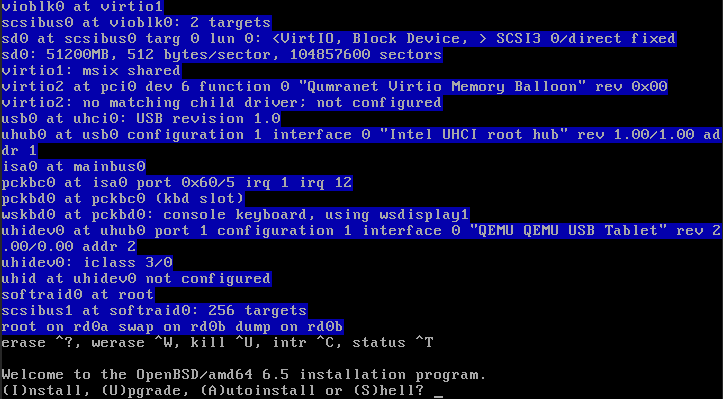
I will run thru the installation process and point out the choices I made: Defaults answers are shown in []’s and are selected by pressing RETURN

(I)nstall, (U)pgrade, (A)utoinstall or (S)hell? I
Choose your keyboard layout ('?' or 'L' for list) [default]
System hostname? (short form, e.g. 'foo') hostname
Which network intercae do you wish to configure? (or 'done') [vio0]
IPv4 address for vio0? (or 'dhcp' or 'none) [dhcp]
IPv6 address for vio0? (or 'autoconf' or 'none') [none] autoconf
Which network intercae do you wish to configure? (or 'done') [done]
DNS domain name? (e.g. 'example.com') [my.domain] foo.com

Password for root account? (will not echo)
Password for root account? (again)
Start sshd(8) by default? [yes]
Do you expect to run the X window System? [yes] no
Setup a user? (enter a lower-case loginname, or 'no) [no] username
Full name for user username? [username]
Password for user username? (will not echo)
Password for user username? (again)
Allow root ssh login? (yes, no, prohibit-password) [no]
What timezone are you in? ('?' for list) [Europe/Amsterdam]
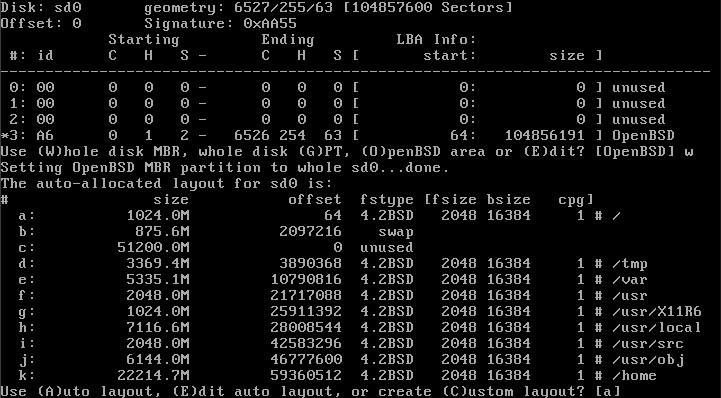
Which disk is the root disk? ('?' for details) [sd0]
Use (W)hole disk MBR, whole disk (G)PT or (E)dit? [whole]
User (A)auto layout, (E)dit auto layout or create (C)ustom layout? [a] a

(I noticed that the /var partition is only getting 5G and /home is getting 22G. I rather have a much bigger /var directory: 25G and a much smaller /home of 2G, but at the moment I am not really familiar with the editor I get, so I’m hoping to alter this after installation, or read into it and do it at a next installation.

Let's install the sets!
Location of sets? (disk http or 'done') [http]
HTTP proxy URL? (e.g. 'http://proxy:8080', or 'none') [none]
HTTP Server? (hostname, list#, 'done' or '?') [?]

Choose the nearest mirror from the list:

HTTP Server? (hostname, list#, 'done' or '?') [?] 32
HTTP Server? (hostname, list#, 'done' or '?') [ftp.nluug.nl]
Server directory? [pub/OpenBSD/6.5/amd64]
Set name(s)? (or 'abort' or 'done') [done] -game*
Set name(s)? (or 'abort' or 'done') [done]
...
Location of sets? (disk http or 'done') [done]
...
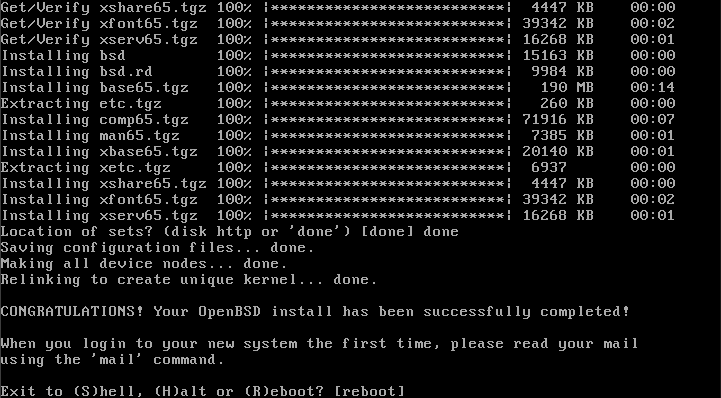
Ready!!! Let’s reboot!

So installing OpenBSD is a rather straight forward process. The most important thing is to disallow root access over ssh. Let’s now dive into hardening this OpenBSD install.

Migrating from Ubuntu to OpenBSD on one of my boxes

Ubuntu is getting way too big, I migrate to OpenBSD…

I have most of my domains and git repositories sit on one VPS. As a result of the fact that it was the first VPS I had, this box was the one that hosts most of my stuff. Back in the days I was quite happy installing Ubuntu LTS, updating from 12.04 to 14.04 to 16.04. But the latest version; 18.04 Bionic Beaver, had such big requirements, especially memory-wise, it’s installation failed on one of my newer and smaller boxes.

I starter looking at other options I ended up installing OpenBSD 6.5 and I was pretty happy with it’s structure and decided that for my private boxes I was going to switch to OpenBSD.

To be able to install a new OS the box should first be released of it’s current duties to run a handful of personal websites of me and some friends. That means moving everything to another box. Which is actually quite simple for now, it is only running a webserver with PHP, no database, and it hosts my personal git repositories over ssh.

So I’ll be moving /var/www and /var/git-bares using Rsync:

$ rsync -azP /var/www user@remote:~/backup-from-server

This will put the directory www inside ~/backup-from-server.

When you want to sync the content you’ll need a trailing slash: /var/www/

-a: “archive”, does a recursive sync and preserves symlinks, modtimes, ownership and permissions.

-z: “zip”, adds compression to the network transfer

-P: combines “progress” and “partial”

After that I move the files to the right position on the new target box and make sure they are being served, swap the DNS to point all domains to the new box and I have my first box ready for installing OpenBSD 6.5.

First post!

Hi there! This is my first blogpost in my new WordPress install.

$ cat /etc/motd
OpenBSD 6.5 (GENERIC) #1: Mon May 27 17:37:06 CEST 2019

Welcome to the AODW.NL network, this is host:

                    $$\                           
                    $$ |                          
 $$$$$$$\ $$\   $$\ $$$$$$$\   $$$$$$\   $$$$$$\  
$$  _____|$$ |  $$ |$$  __$$\ $$  __$$\ $$  __$$\ 
$$ /      $$ |  $$ |$$ |  $$ |$$$$$$$$ |$$ |  \__|
$$ |      $$ |  $$ |$$ |  $$ |$$   ____|$$ |      
\$$$$$$$\ \$$$$$$$ |$$$$$$$  |\$$$$$$$\ $$ |      
 \_______| \____$$ |\_______/  \_______|\__|      
          $$\   $$ |                              
          \$$$$$$  |                              
           \______/                               

source: http://www.patorjk.com/software/taag/#p=display&h=1&f=Big%20Money-nw&t=cyber